Chitika

Showing posts with label Asus Tablet Reviews. Show all posts

Monday, March 18, 2013

ASUS MeMO Pad Smart 10 (ME301T) Review: An Amazing Budget Tablet With One Huge Downside

When I first read the specs and saw pictures of the MeMO Pad Smart, the only thing that popped into my mind was this is just like a TF300, minus the dock. It was beyond me why ASUS would even build a tablet that is essentially identical to one of its other tablets. Sure, the price is $50 lower, but still – is there really a market for this?

I imagine that, like me, the majority of you also judged this tablet based merely on the spec sheet. This is last year's flagship, you might have said. And of course, I understand that. Hell, I stepped into this review expecting to tell everyone why they shouldn't buy it.

Guess what, though? I was wrong. This is actually a really good tablet, save for one fairly major flaw. Still, for $300, some of the features it offers absolutely blew me away. If ASUS would've bumped a couple of the specs up a notch – namely the display and RAM – this would easily be one of the best 10" devices on the market.
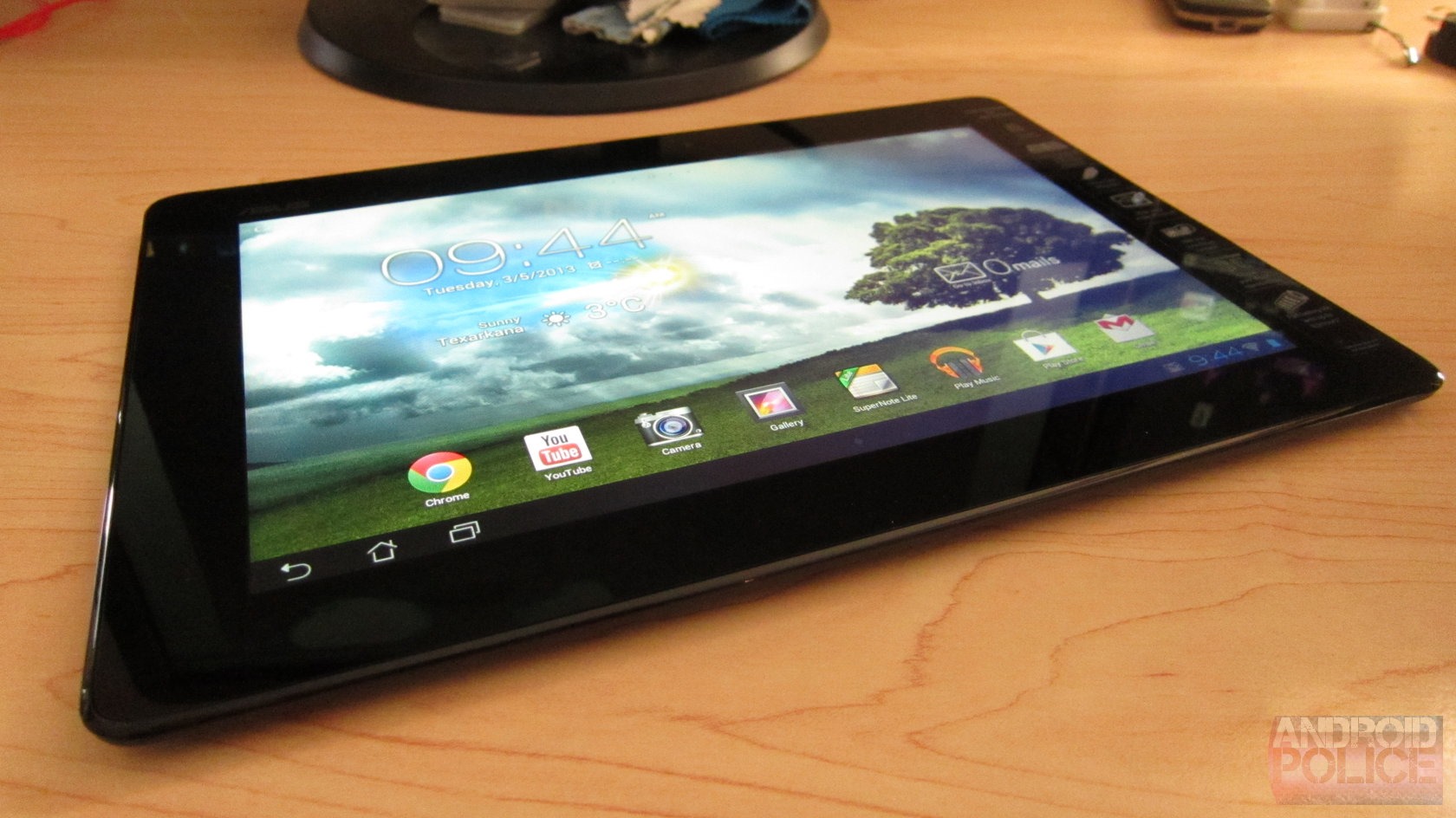
Now, let's talk about why.
wm_IMG_2695

Specs

  • Display: 10.1" 1280x800 IPS Panel, 350 nit brightness
  • Processor: 1.2GHz NVIDIA Tegra 3 quad-core processor
  • RAM: 1GB DDR3
  • Storage: 16GB, microSD Card slot
  • Cameras: 5MP rear, 1.2MP front 
  • Ports: microUSB 2.0, microHDMI
  • Wireless: Wi-Fi, GPS, Bluetooth 3.0
  • Battery: 19WHr
  • OS: Android 4.1.1, 4.2.x coming "in Q2"
  • Dimensions: 10.3" x 7.1" x 0.39", 1.3 lbs.
  • Price: $299

The Good

  • Form factor. I realize that this is just another 10-inch tablet, but it feels great. Despite being almost identical in weight to the TF700 (Infinity), it still feels lighter. It could be because of the plastic back, or perhaps it's just better balanced than ASUS' high-res tablet.
  • The Speakers. Unlike previous ASUS tablets, the MeMO Pad Smart 10 has two speakers. While they're still on the back, they sound absolutely amazing. Better than any other tablet I've heard – and they could probably trump most laptop speakers, too. ASUS included some specialized EQ software that really pushes the boundaries of what these little speakers can do. It almost sounds like there's a subwoofer stuffed in the back of the tablet somewhere.
  • It's speedy. Yes, Tegra 3. It's fast. You get that. In my initial tests, I didn't notice much of a slowdown when downloading/installing apps, but it's hard to say if that changes (like with all the Transformers) in the long-term. Right out of the box, though, it's quite snappy.
  • MicroUSB Charging. ASUS finally ditched the proprietary charger and went with the modern-day microUSB charger. And I'm so happy about it.
  • The Camera. For a tablet, the camera on the MeMO is actually pretty good! It's very quick, and the image quality is among the best I've ever seen from a larger form-factor device. That's not saying much, but it is something, especially considering the camera is usually one of the first things to get the shaft on a budget device.

The Bad

  • Display. This is 2013, and 1280x800 on a 10-inch device is just unacceptable. I get that this is basically a "budget" tablet, but I can see way too many pixels. Text looks especially awful.
  • It's basically a TF300 without an optional dock. Let's just call it what it is – a Transformer Pad 300. The specs are nearly identical, and the primary differences are the microUSB charger and dual speakers (both of which are fantastic), but really, it's barely even an incremental update.
  • Battery Life. Like other ASUS tablets, if you leave the MeMO Pad on overnight, expect it to be dead by dawn. I once left an Acer tablet on for a solid month without really using it, and it didn't die. This one won't even last 30 hours of non-use, much less 30 days.
  • Android 4.1.1. It's a new tablet. How hard is it to ship with 4.2.x, especially considering that a nearly-identical model already has the latest?

Build Quality/Design
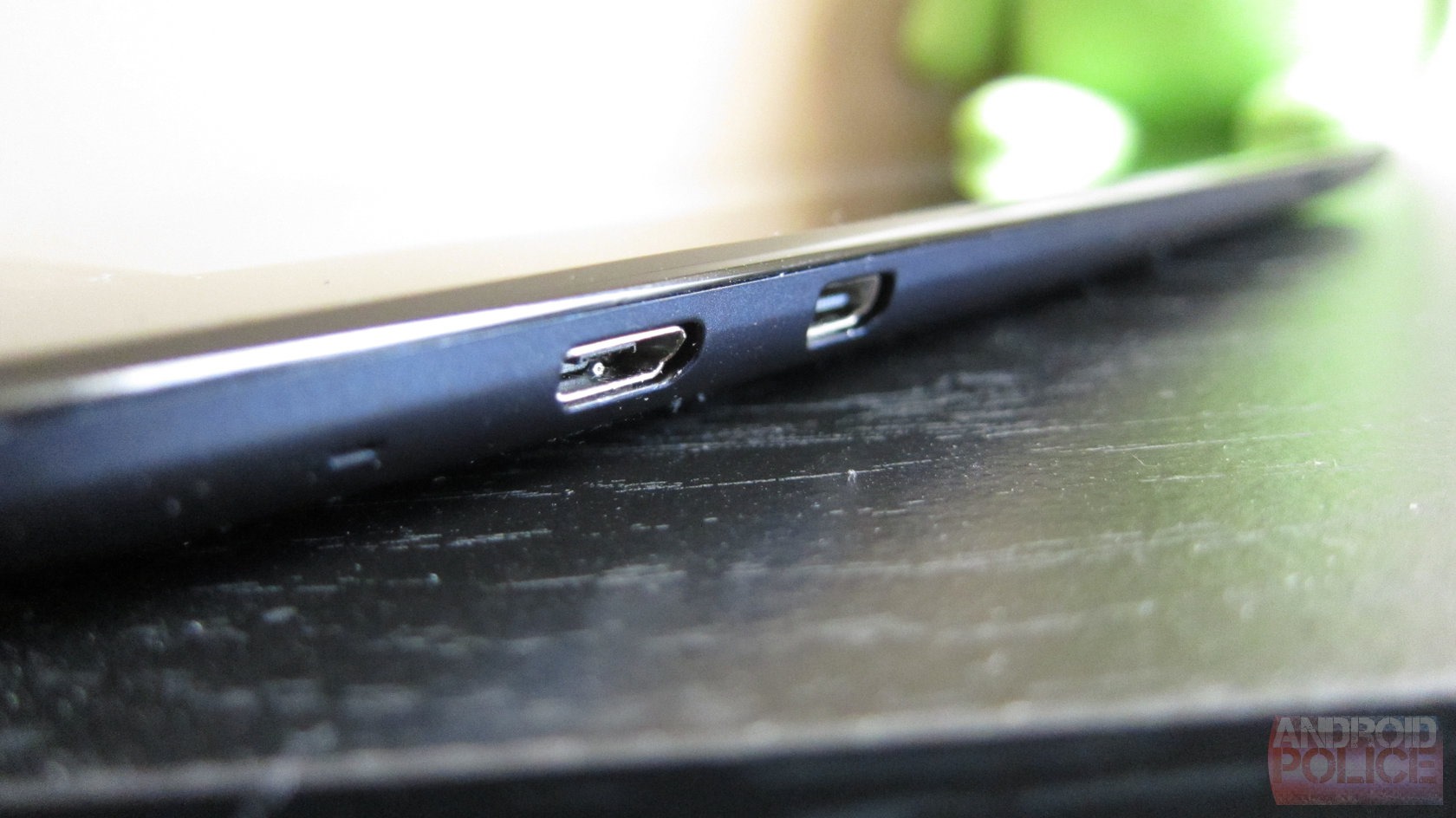
wm_IMG_2671 wm_IMG_2672 wm_IMG_2673
What is there to say about ASUS build quality that hasn't already been said? It's good. Very good. The MeMO Pad is no different. It may be made out of plastic, but it feels great. Unlike the TF300, which has a textured back, the MeMO Pad has a smooth back. That could be what makes it feel so much thinner than the TF300, because in reality, they share essentially the same dimensions. But it definitely adds to the feeling of sleekness.
wm_IMG_2686 wm_IMG_2688
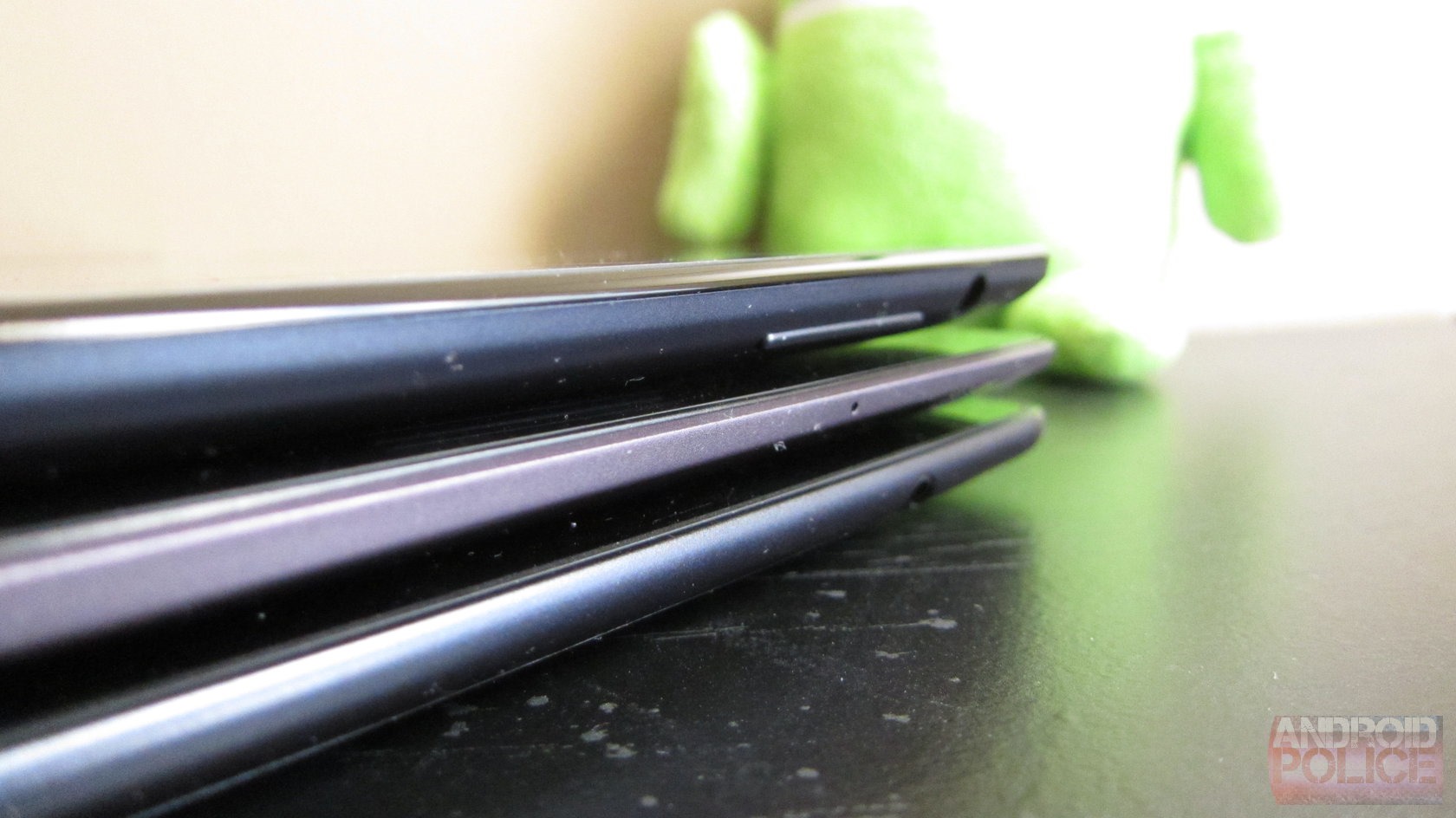
Top to bottom: MeMO Pad Smart, TF700, TF300
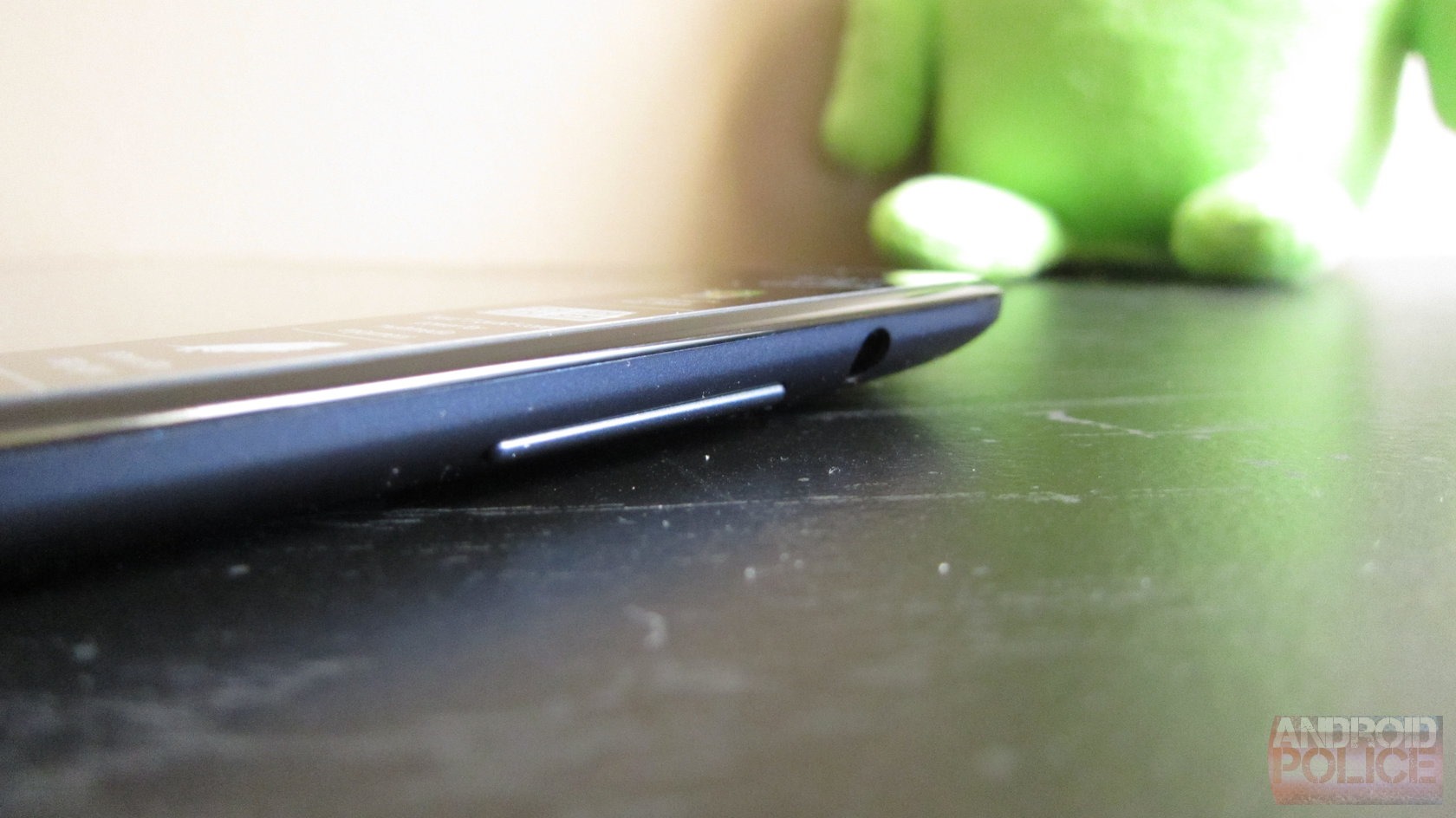
The port and button placement on the tablet is pretty familiar for anyone who's ever used a Transformer: power button on top; microHDMI, microUSB, and microSD on the left side; and volume rocker on the right side. On this one, though, you won't find a thing on the bottom since ASUS did away with the proprietary charger.
Otherwise, it's pretty cut and dry. It's a 10-inch tablet. And it's well-made.

Display and Speakers

wm_IMG_2690
The worst and best features of this device, all lumped into the same category. Gotta take the bad with the good, after all. Let's start with the former.
Plain and simple, the display on the MeMO Pad makes me sad. Most things about this tablet are surprisingly great, but the display is such a downer that it nearly kills the entire experience. After getting used to devices like the Nexus 7 (1280x800, seven-inch display, 216 PPI), Infinity (1920x1200, 10-inch display, 224 PPI), and Nexus 10 (2560x1600, 10-inch display, 300 PPI), 1280x800 on a 10-incher (149 PPI) is gag-worthy. It's not so bad when you're not looking at text, but the second you pop up the notification tray to see your latest email, there's a cringe-inducing reminder of how lackluster the screen really is. Still, it does have impressive viewing angles. That's good for those times you want to show the guy next to you all those crappy pixels.
wm_IMG_2674 wm_IMG_2675
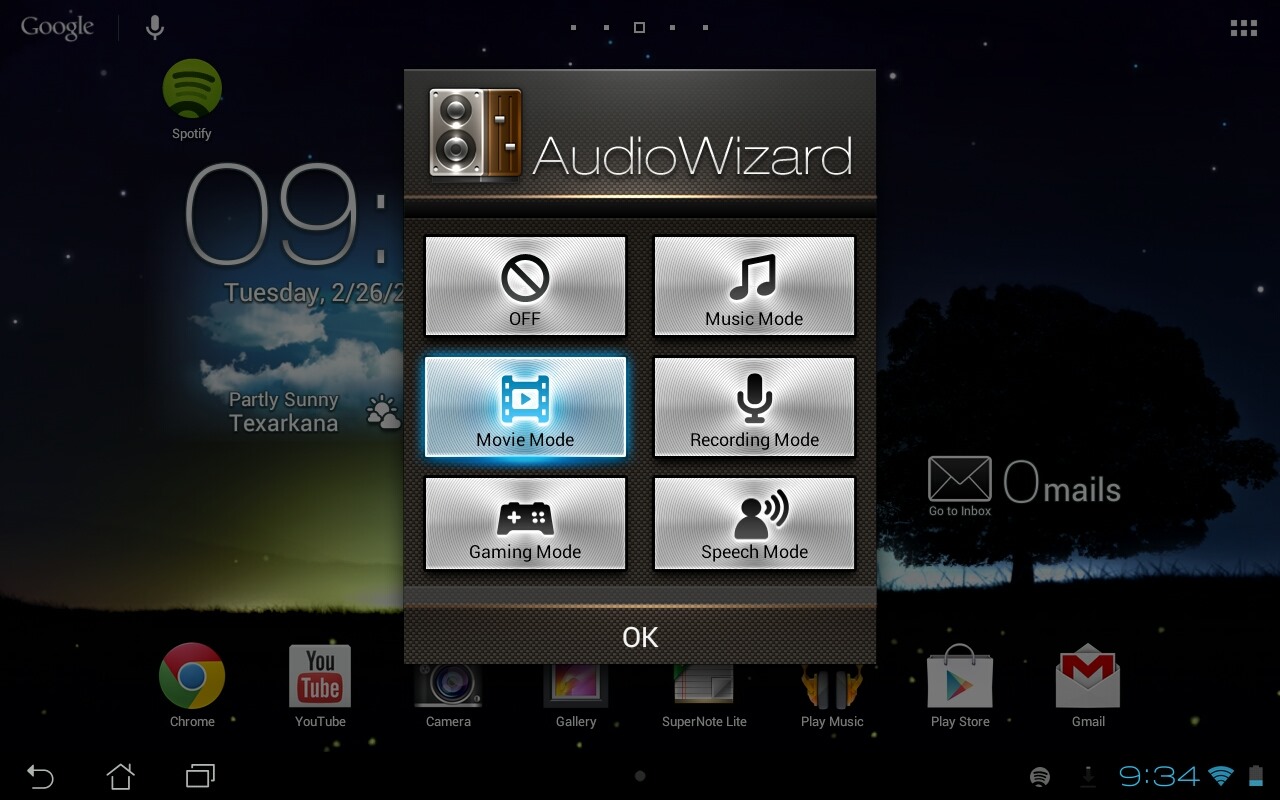
But then there are the speakers. When it comes to tablet audio, the N10 usually gets the award for best speakers, but that's mostly because they're on the front. The MeMO's speakers are on the back, but holy crap, they'll blow your mind. ASUS shipped the device with some neat software that basically tweaks the EQ with some fairly simple settings for different uses: music, movies, recording, gaming, speech, and off. There is a very discernable difference between all of the settings, and it's actually pretty clear each one was indeed tailor-made for its intended use.
Screenshot_2013-02-26-21-34-19
For example, the "gaming" and "movie" modes both have a fairly substantial amount of bass, which just adds to the cinematic effect of each. "Music" and "speech," on the other hand, are both a little heavier on mids and treble. Ultimately, you can use whichever settings you want, but I found the bass-heavy settings tend to cause distortion when listening to music. Hence the music setting, which has less bass.

Speaking of bass, I just want to throw it out there that it sounds like ASUS somehow crammed a tiny subwoofer capable of producing massive sound into the back of this tablet. I mean, it's not going to rattle the windows or anything, but even after a week of using the device, I'm still astounded that these sounds are coming from a tablet.

Software

Screenshot_2013-03-05-10-07-09
Enough about speakers, though. Let's talk about software! Basically, the MeMO differs from other 10-inch ASUS tablets in very few ways. It's running Android 4.1.1 out of the box, has a few ASUS customizations, and, honestly, that's really it.
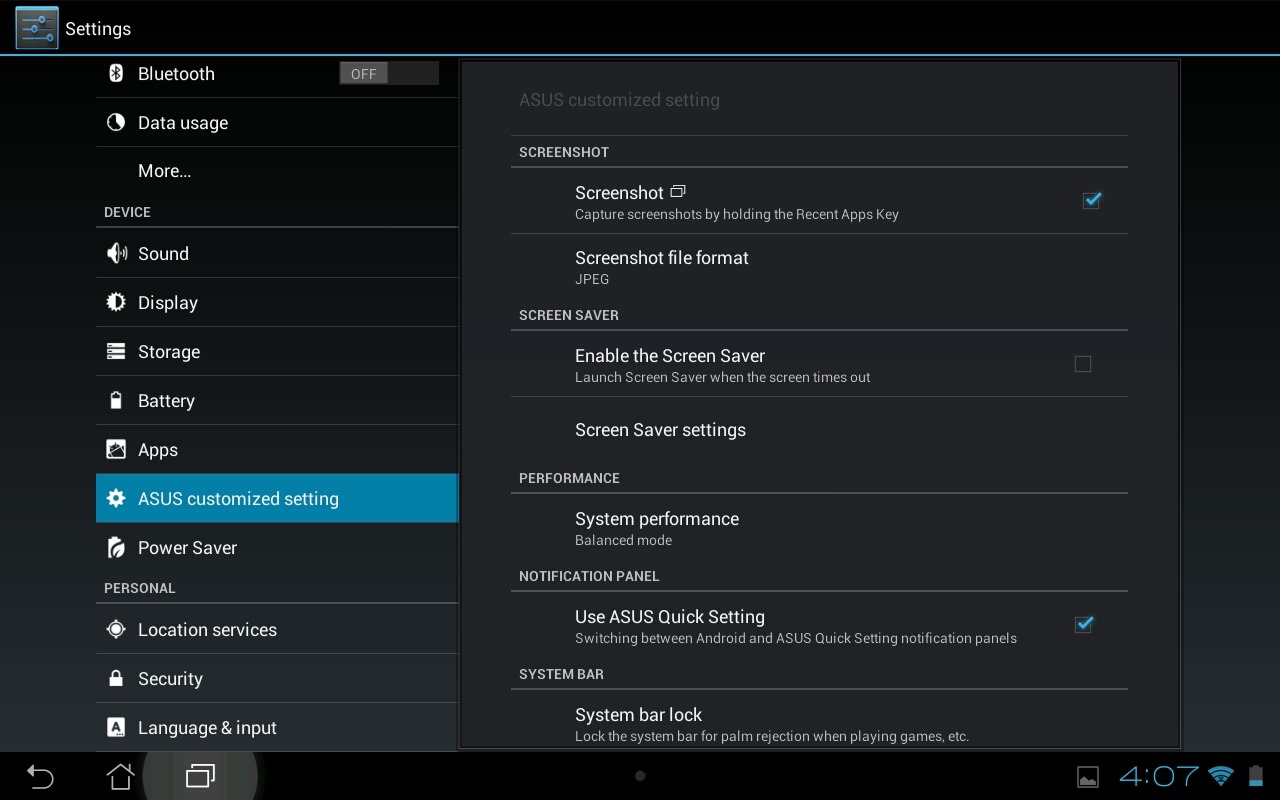
Aside from ASUS' typical notification quick settings mod, the device sports a few other minor tweaks, like the ability to take a screenshot by long-pressing the recent apps key (the normal power+volume down method still works, too), a "screen saver" option that essentially turns the tablet into a digital picture frame, and a "system bar lock," which renders the navigation/notification bar unusable to avoid accidental taps while gaming, watching movies, and the like. All very basic, yet useful features. 
Screenshot_2013-03-04-16-07-32
Just like on the more recent Transformer tablets, you'll also find three different performance modes: power savings, balanced, and performance. This can aid in saving battery life when you need to keep the device alive a bit longer, as well as kick it into high gear when you want to get all that Tegra 3 has to offer. For the most part, I leave all the ASUS tablets in "balanced" mode, which has always provided the juice I needed. The MeMO was no exception.
The MeMO Pad ships with various ASUS apps bundled. I'd be remiss not to highlight what these apps do, so here's a brief description of each:
  • App Backup – This is basically ASUS' version of Titanium Backup, but it (obviously) doesn't require root. As such, it's not as powerful, either. Still, it's cool.
  • App Locker – This locks your apps up behind a password.
  • ASUS Studio – ASUS' take on the gallery. Features a lot of the same editing functionality already found in Android 4.2.
  • AudioWizard – The EQ quick settings menu.
  • BuzzBuddy – It's a social media aggregator that handles Facebook, Twitter, and something called "Plurk."
  • File Manager – Um, it's a file manager.
  • MyBitCast – This one is sort of like Evernote, but it uses ASUS WebStorage to sync across multiple devices.
  • MyLibarary Lite – An ebook reader.
  • Parental Lock – Like the name suggests, this is an all-in-one place for parents. Device tracking, application locking, and custom lockout times are all along for the ride.
  • PinPal – Another social media aggregator. Not sure why.
  • Press Reader – A news aggregator that offers "over 2,000 full-content newspapers from 95 countries." This one's actually a paid service, so the bundled app is just a free trial.
  • SuperNote Lite – For taking notes with natural handwriting.
  • WebStorage – Similar to Dropbox in function, but ASUS-branded.
That really sums up the software. ASUS doesn't tweak Android all that much, which is a good thing. What said software is capable of is the important part. With that, let's get into performance.

Performance

This is what it all boils down to, isn't it? The display, speakers, form factor, and everything else about a device can be perfect, but if it can't deliver a quality experience, then it's basically useless.

When it comes to getting down to business (or gaming, watching movies, or reading things), the MeMO doesn't seem to have much problem delivering. It handled everything I threw at it with grace, but I would expected nothing less from a Tegra 3 device. Gaming was smooth and fluid, browsing the web went off without a hitch, movie playback was good – basically anything you'd want to do with a tablet is good to go on the MeMO pad where performance is concerned.

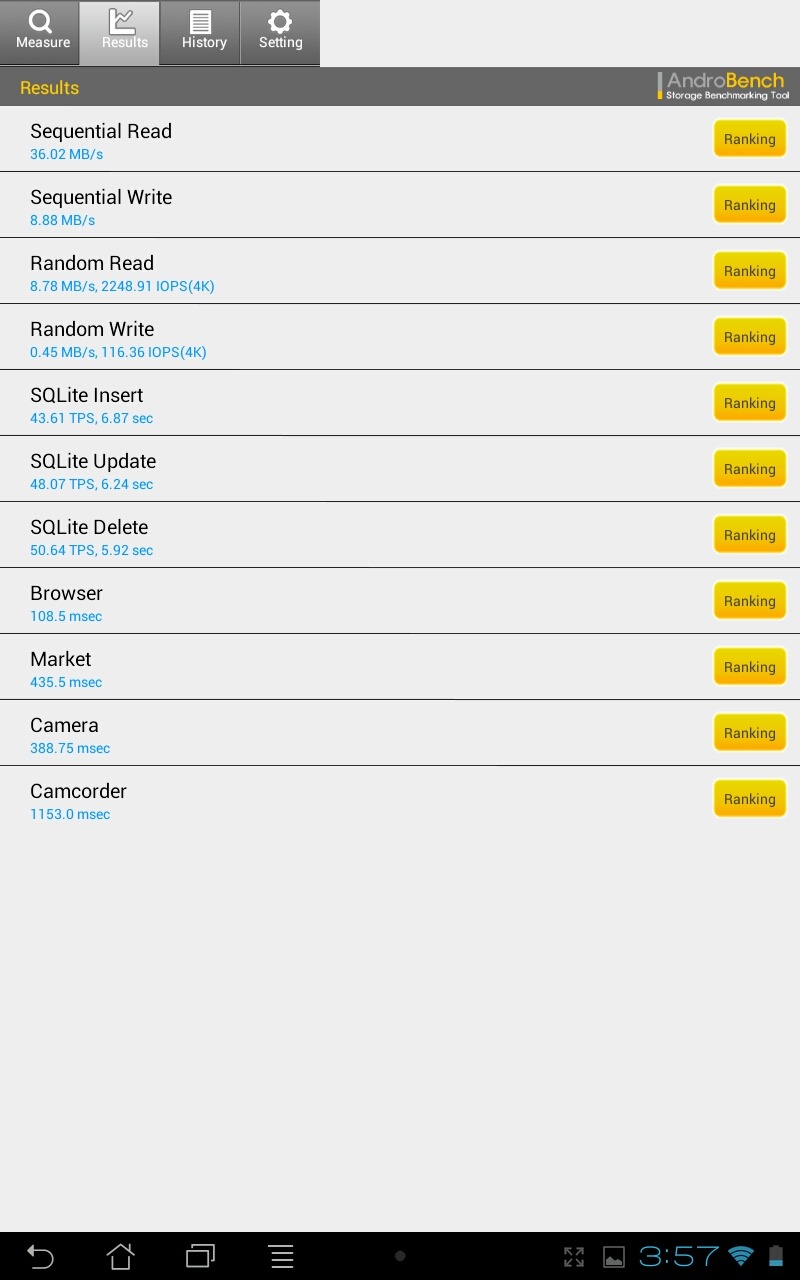
Of course, the real issue with all ASUS tablets up to this point has been the storage read/write speed. Everything may seem to be fine, but when it comes to any write-intensive task – like installing apps, for example – the device slows to a crawl. While I haven't experienced that issue on the MeMO in the same magnitude that I have with other ASUS tablets (most Androbench scores nearly doubled that of the TF300), there was a hint of slowdown while updating apps. It's hard to say whether or not that issue will worsen with time, but it's definitely something to consider.

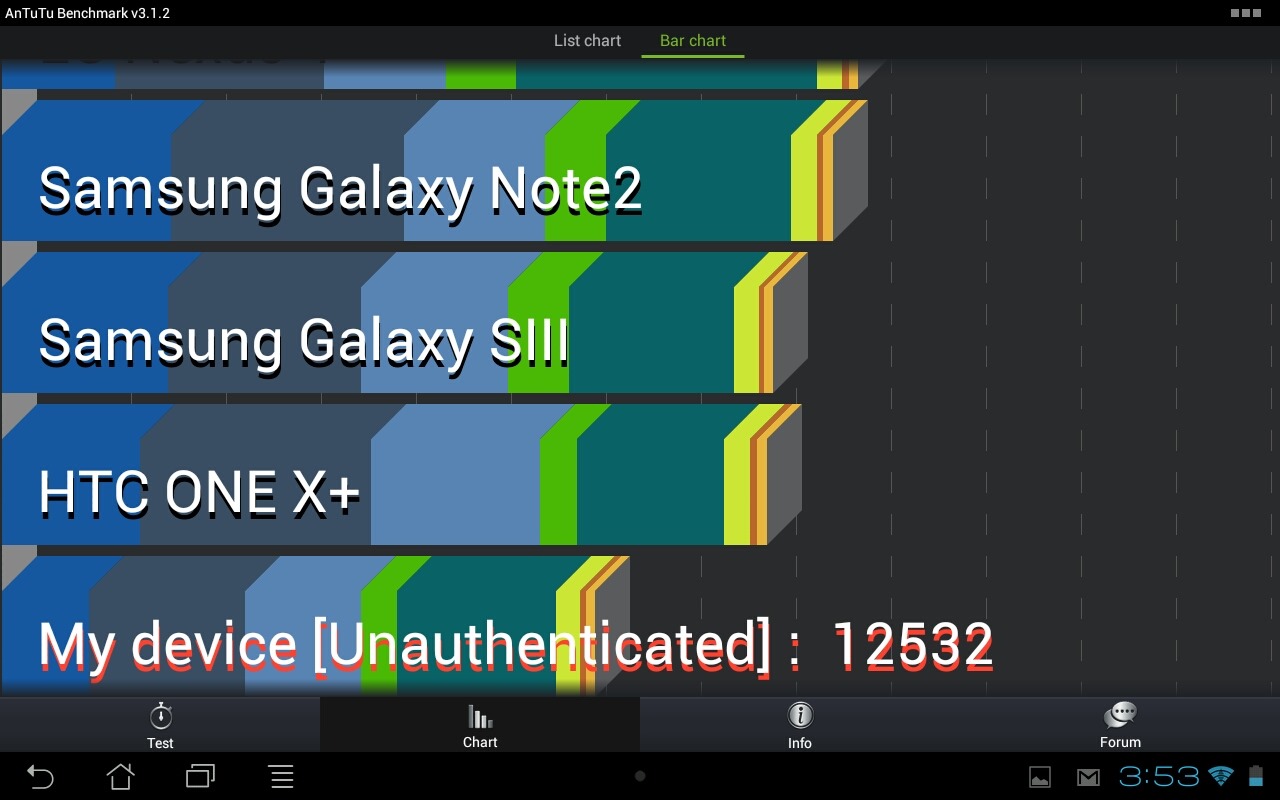
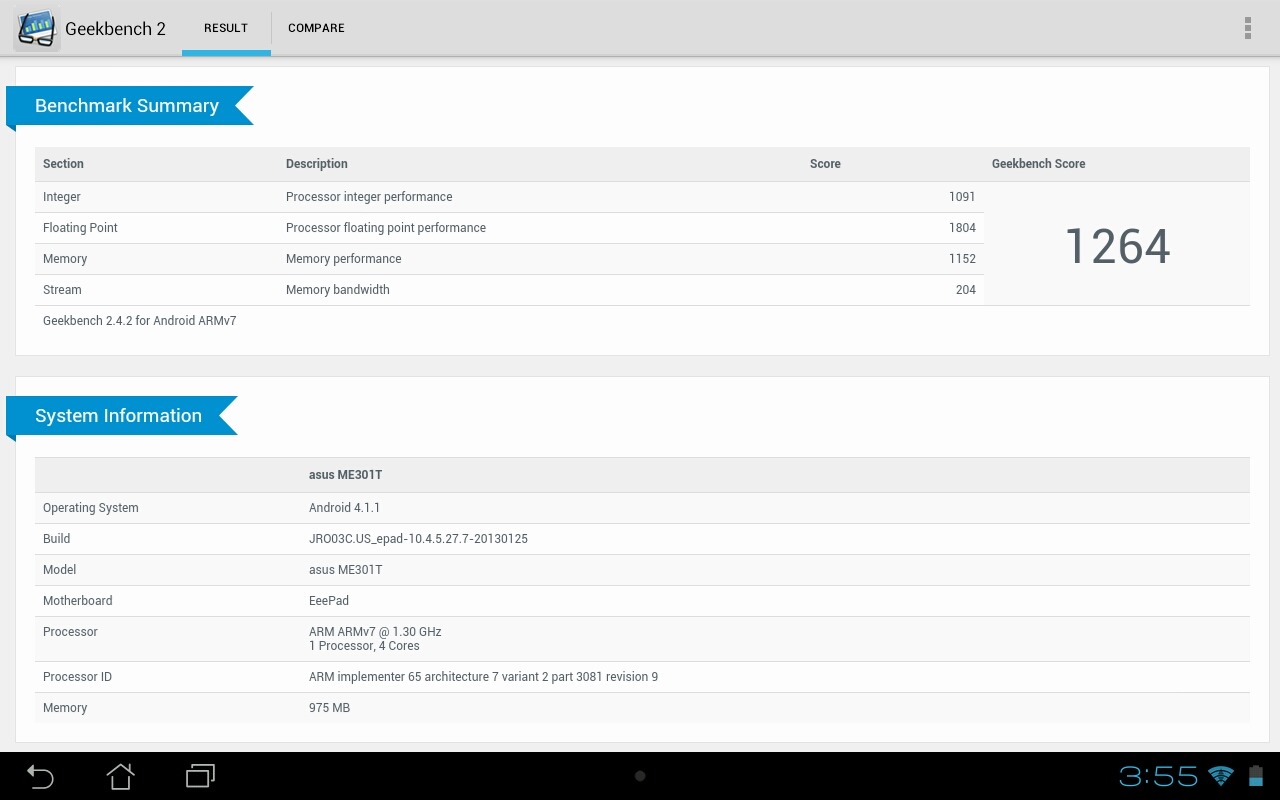
Since everyone loves to be able to quantify how good a device actually is, here are a few of the most common and relevant benchmarks.

AntuTu

Screenshot_2013-03-04-15-53-00 Screenshot_2013-03-04-15-53-51

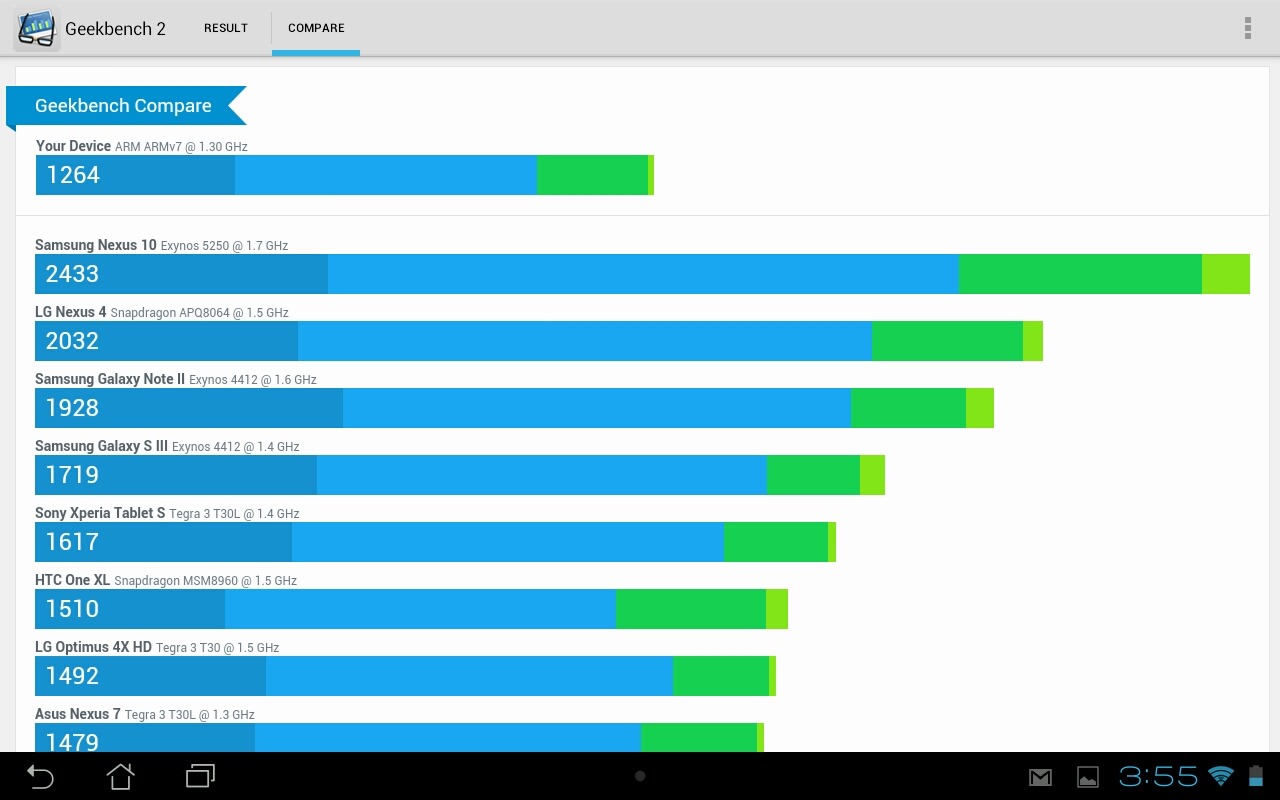
Geekbench

Screenshot_2013-03-04-15-55-50 Screenshot_2013-03-04-15-55-38

Androbench

Screenshot_2013-03-04-15-57-55

As always, benchmarks should be taken with a grain of salt, as they don't tell the entire story. Still, they're a decent way to at least get an idea of how a device performs.

Battery Life
Screenshot_2013-03-04-16-07-12
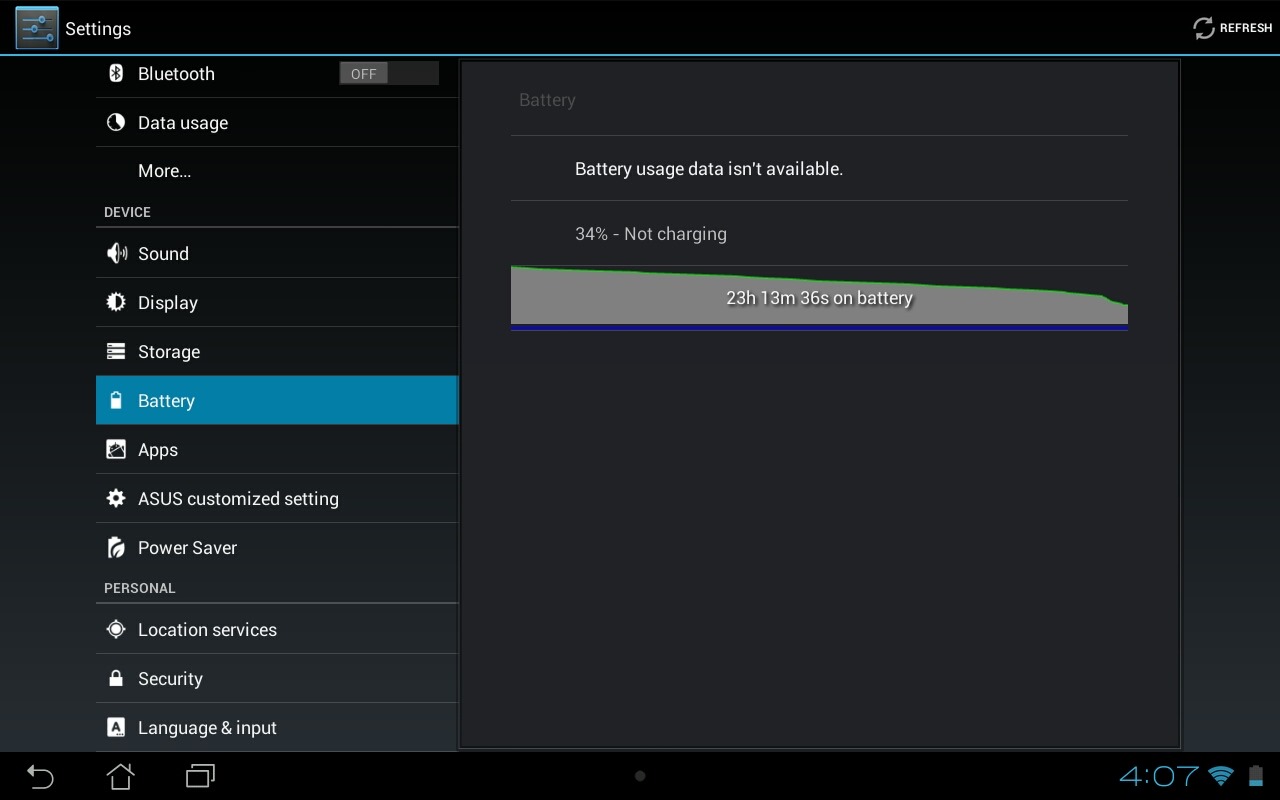
This is always the hardest part of a review for me, for one reason only: it's nearly impossible to use any sort of blanket test to quantify battery life. Sure, we could loop video and tell you how long the battery lasts, or "stream music with Wi-Fi on and brightness at 50%" until we get a low battery warning, but neither of those are real world use. Instead, I can just use the device like I would normally use a tablet, and share my results. In my opinion, that's the best way to judge battery life, but it's still far from perfect because your use may be quite different than mine. And I imagine it is. But that's what we have to work with.

With that little bit of opinion out of the way, let's talk about the actual battery life of the MeMO Smart. According to ASUS you should get "up to 8.5 hours" of use. That is, of course, under the most ideal conditions (read: not real world use). In my tests, I got roughly 7ish hours of use.

But what do my "tests" consist of? There really isn't a lot of science behind it, honestly. Here's the long and short of it:
  • Web browsing, email, social networking (light web stuff): 1(ish) hour
  • Gaming: 1 hour
  • Picking through menus, messing around, other review-based junk: 2 hours
  • Magazines, books, videos, maybe a movie: 2(ish) hours
Like I said earlier, I rarely change the mode on any of the ASUS tablets from "balanced," and that's exactly how I handled the MeMO, too. If you drop it down to "power saver," I'm sure you could squeeze and extra hour, maybe two out of it. Adversely, "performance" will kill it quicker. It's not rocket science.

If you're the type who must have something a little more concrete, I think 7 hours is a safe number to say, granted you plan on doing more than gaming 100% of the time. And that's that.

Camera
wm_IMG_2676
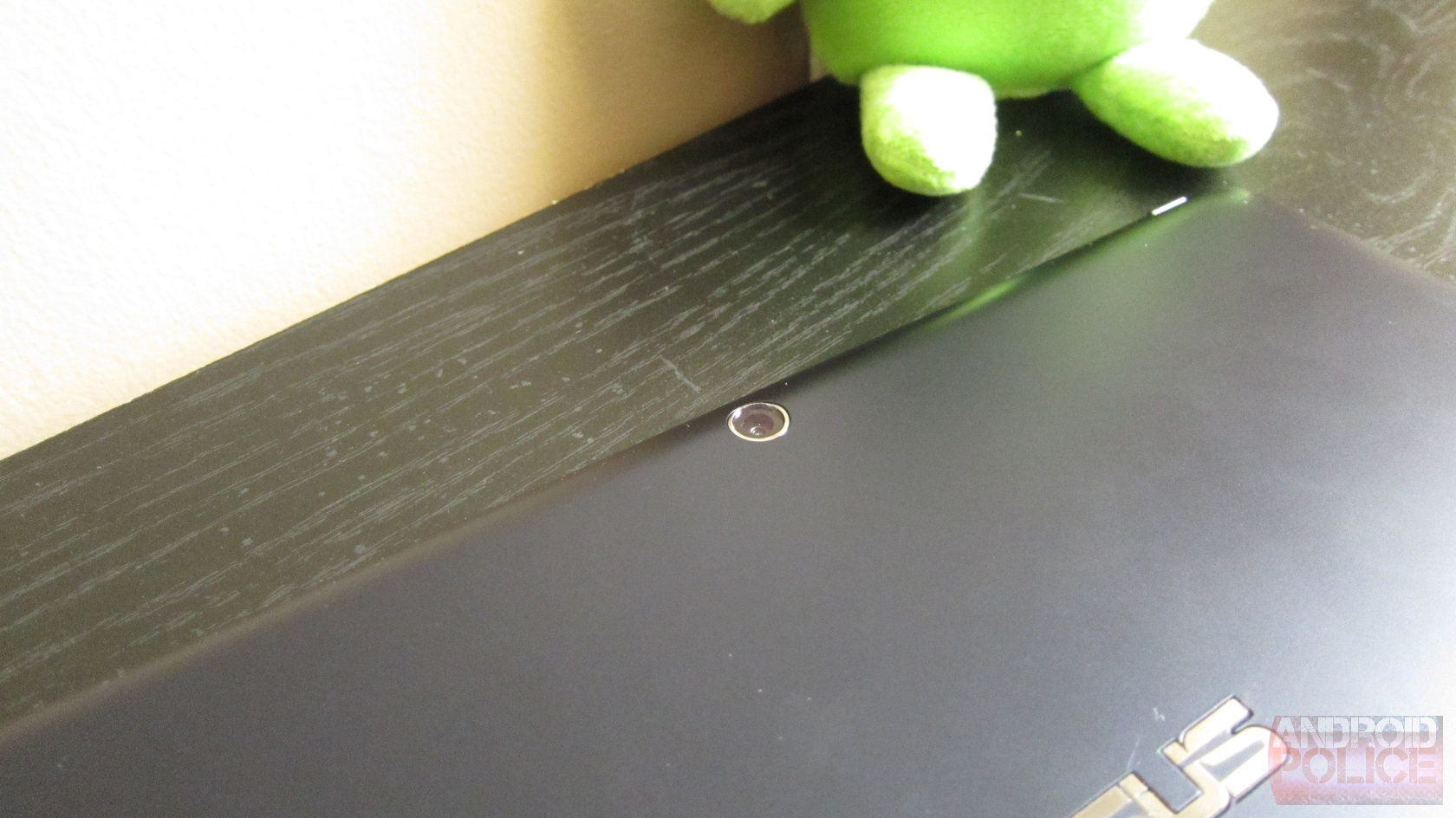
So far as tablet cameras are concerned, the one on the MeMO Pad is a winner – and that's something I don't say lightly. Mostly because tablet manufacturers generally use garbage cameras, so I wonder why they even waste their time putting them in there. If you're going to do something, do it right. Right? Right.

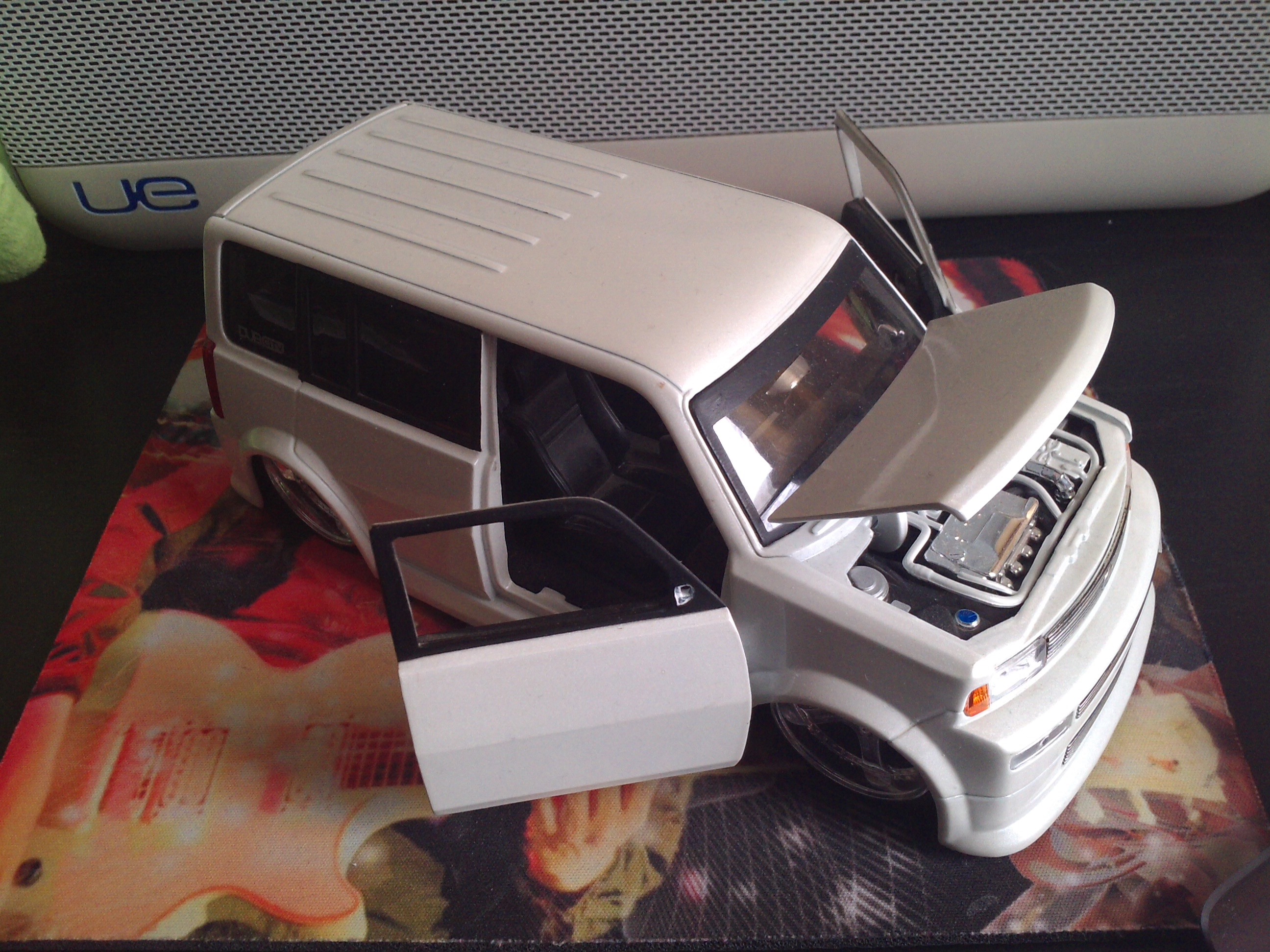
But back to the MeMO Pad's camera. It's lightning fast – even in less than ideal lighting conditions it snaps pictures instantly. But that's not the only thing that makes it "good;" the pictures are surprisingly decent, too. Especially when you consider that this is a budget tablet, because, let's be honest, the camera is usually one of the first things to take a hit in more affordable devices. Enough of that. Here are some sample images, because they tell the story much better than I do.
IMG_20130304_130106
IMG_20130305_130714 IMG_20130305_130720
IMG_20130305_132451 IMG_20130305_132559 IMG_20130305_132913
Top: close-up, indoors; middle: portrait, indoors; bottom: outdoors (like you couldn't tell)

Conclusion
wm_IMG_2701
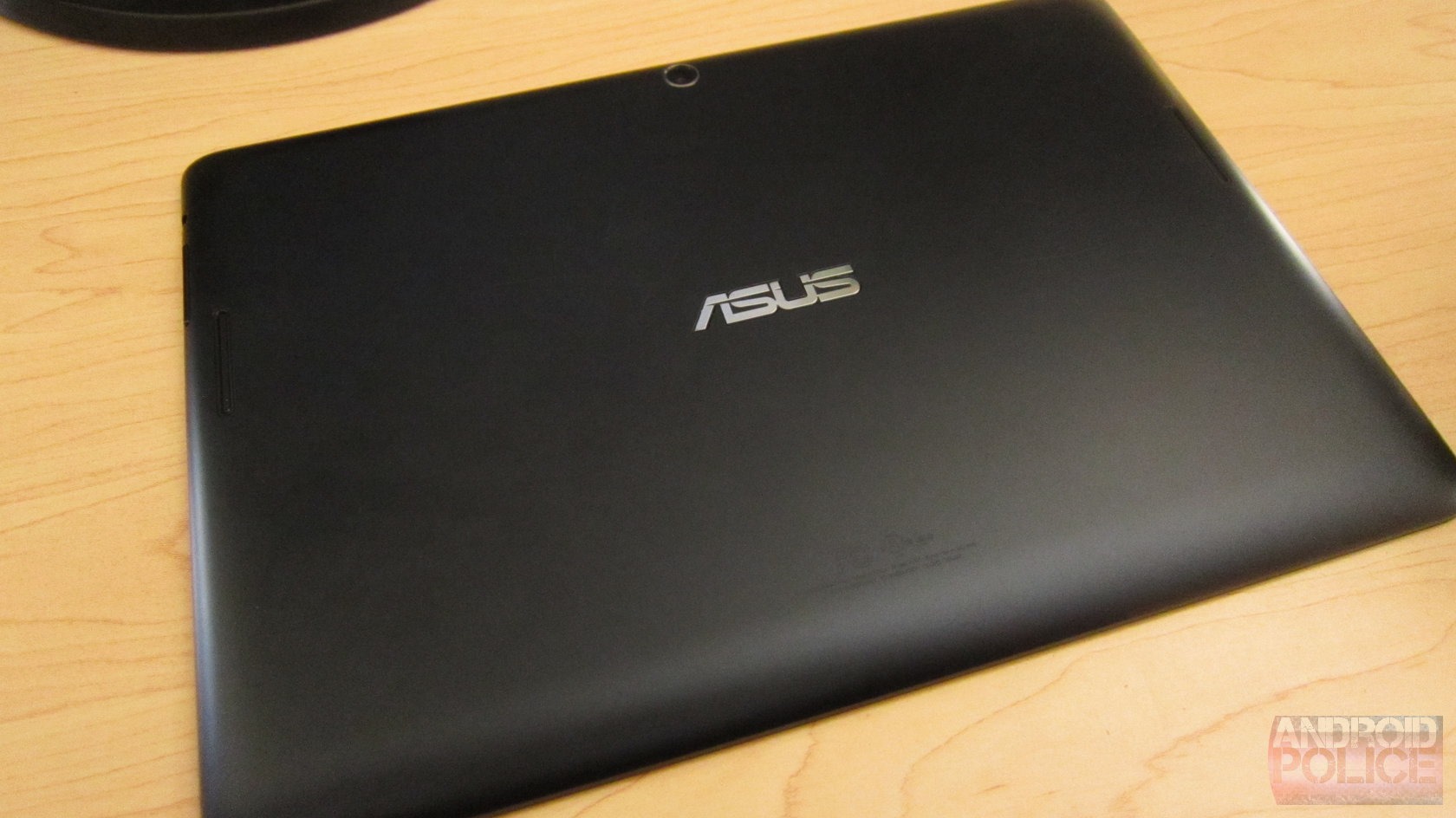
As I said at the beginning, I went in to this review expecting to be reviewing a 2012 tablet in 2013. In a way, that's exactly what I got. But the MeMO Pad Smart is much more, and is actually better than many of 2012's offerings, especially from ASUS. Sure, it doesn't have a nifty keyboard dock that nearly doubles the battery life, a hi-res display, or the latest version of Android (right now), but it does have a fantastic set of speakers, solid performance, and a likeable fit and finish. Is it the best tablet on the market? No. Far from it. But for $300, it's a good buy, so long as you can get past the 1280x800 display. That's honestly the only thing holding me back from giving the MeMO two big thumbs up. If ASUS would've taken a bit more of a hit and threw a 1920x1200 panel in here for the same price, this device would've been one of the best budget tablets money could buy.

As it stands though, it's just OK. I'm walking away form this review actually impressed with what ASUS has done, but desperately wishing the decision would've been made to include a higher resolution screen, because it pains me to see a tablet this good fall short in such a huge way.

The bottom line is this: if you absolutely cannot go over $300, the MeMO Pad Smart is a pretty good option. If you jump up to $400, though, a whole new world of options are opened up, including the powerhouse Nexus 10.

If you have any questions about the MeMO Pad Smart, feel free to fire away in the comments and I'll do my best to answer.

Thursday, February 28, 2013

Asus launches MeMO Pad in India for $180.00

Asus launches MeMO Pad in India for $180.00


Asus today launched its MeMO Pad in India for $180.00. Venturing in the US$93.00 to US$185.00 tablet market with the best-in-class features, the 7-inch ASUS MeMO Pad is the company’s first tablet in the segment. The Asus MeMO Pad can be picked in three colors – Sugar White, Titanium Gray and Cherry Pink.

The Asus MeMO Pad features Android 4.1 and offers full support for Google Play, allowing users to choose from over 750,000 apps and games, browse the world's largest eBookstore, search millions of songs, watch thousands of the latest and greatest movies and TV shows and even flip through their favourite magazines. The Asus MeMO Pad is powered by a 1GHz VIA WM8950 CPU and a Mali-400 GPU. It features a 10-point multi-touch LED-backlit display, 140-degree wide viewing angles and thanks to its 350-nit brightness, the images remain clear even outdoors. MeMO Pad also features Asus SonicMaster audio and MaxxAudio for high-quality sound. The Asus MeMO Pad has a battery life of 7 hours and is fuelled by a 4270 mAh battery.

Asus launches MeMO Pad in India for $183.00
Asus MeMO Pad was introduced last month to mobile consumers


Here's a quick look at the specifications of the MeMO Pad:
  • 7-inch, LED-backlit display with a resolution of 1024 x 600 pixels
  • Wi-Fi capabilities
  • 1MP back-illuminated sensor, f/2.0, with 720p HD video capture at 30fps
  • 8GB or 16GB storage + expandable memory up to 32GB

“After offering various mid & high end products in the Indian market with innovative technologies, we believe it’s time to bring the same grandeur to the low end market. We are pleased to announce the launch of the ASUS MeMO Pad that gives you the mobility to stay connected in today’s socially connected environment. With an ultra-light, minimalistic and anti-slip design, the MeMO Pad will not only help you to keep in touch with friends, but will also fulfill all your entertainment requirements- and all this at the irresistible price of $180.00/- only,” affirmed Mr. Peter Chang, Regional Head, South Asia & Country Manager, System Business Group, ASUS India.

MeMO stands for "My Mobile. My Moment" and reflects the position of Asus MeMO Pad as a tablet for people on-the-go. The Asus MeMO Pad weighs just 358 g and measures 196.2 x 119.2 x 11.2 mm.

The tablet has up to 7 hours of battery life for all-day computing. Its front facing HD camera can take HD videos (720p) with up to 30 frames per second and the Æ’/2.0 aperture captures more light, providing better image quality with more accurate colours and enhanced video calls.

Along with the Tablet, Asus has bundled functional Apps like "Asus WebStorage" with 5GB online Lifetime Space and "Asus Webstorage Office" to empower users to view, create, edit and share Microsoft Office documents on the mobile device. Enhancing the Sound experience, the ME172V also has "SonicMaster" Audio Technology with Audio Wizard, which is equipped with award winning Maxx Audio to deliver precise and crystal sound effects. It eases multimedia, creativity and entertainment on the go with Asus Studio [Manage, edit, and tag photos], SuperNote Lite [Read, type, and scribble anytime and anywhere] and MyPainter [Creativity to record exciting moments].

Asus MeMO Pad ME172V offers fun on the run and helps in connecting with friends with social applications including Floating App with Multi-tasking, Browser, Video, Sticky Memo, Stopwatch, Countdown and BuddyBuzz. In addition, the ASUS Cloud Experience is Super Convenient to sync data and edit files online.

Wednesday, February 27, 2013

Asus Taichi 21 (11-inch, Core i7-3517U Processor 1.9GHz, 4GB RAM)

More of a clever proof-of-concept than a practical product, the Asus Taichi still delivers on its basic promise, combining two displays for a unique take on the laptop/tablet/hybrid genre.
One of the most unusual Windows 8 systems seen to date is the Asus Taichi. And that's saying something, as we've already seen laptops with screens that flip, fold, rotate, slide, and separate completely from the bottom half of the clamshell. 

Available in both 11.6-inch and 13.3-inch Ultrabook-branded models, both versions of the Taichi share one notable feature: A double-sided LED-backlit IPS display. That means there is a standard clamshell laptop screen, and then a second screen pointing out from where the back of the lid would normally be. The model we tested was an Intel Core 7 version with 11.6-inch displays that costs US$1,599 (a Core i5 version is available for US$1,299).

While you can choose to use one screen or the other, you can also use both in tandem, with the outer screen acting as a secondary display, able to either duplicate or extend the interior display. That could be useful for sharing a presentation, for example, or for putting some distracting video content on the outer screen for the kids, while you're working on something productive on the interior screen. 

The actual real-world usefulness of this feature is admittedly a question mark, and nearly everyone I've shown the system to has expressed doubts about its practicality, especially with so many high-quality thin, powerful, Ultrabook-style laptops available for less. The truth is that it's probably only really useful in a handful of very specific situations, but if you happen to find yourself in one of those on a regular basis, it may feel as if Asus has been reading your mind.
(Credit: CNET)
While the dual-screen setup does indeed work as advertised, the system as a whole suffers from one nearly fatal flaw. The outer 11-inch screen is a standard Windows 8 touchscreen, but the interior screen, where you'll likely spend most of your time, is not touch-enabled. It's a hugely frustrating oversight, especially as nearly every new Windows 8 system we've seen has a touchscreen, and certainly everything in this price range.

Design

At first glance, the Asus Taichi 21 looks and feels a lot like other 11-inch Ultrabook-style laptops, with a relatively thin body, an interior tray dominated by a large touchpad, and a surface dominated by brushed metal and glass.

While the idea of having a second screen built into the back of the lid may seem like the kind of thing that would be hard to miss, when the screen is off, it's virtually invisible. The only difference between this and a laptop such as the 11-inch Asus X202E is that the back of the lid appears to be made of shiny glass. That's a look we've also seen in the original HP Spectre and the more recent Acer Aspire S7, so it's not as visually jarring as one might think.
Specifications as reviewed Asus Taichi 21
Price as reviewed US$1,599
Processor 1.9GHz Intel Core i7-3517U
Memory 4GB, 1,600MHz DDR3
Storage 256GB SSD
Chipset Intel HM77
Graphics Intel HD Graphics 4000
Operating system Windows 8
Dimensions (WD) 306.6 x 199.3mm
Height 17.4mm
Screen size (diagonal) 11.6-inch
System weight 1.25kg
Category Ultraportable

That external screen is actually the nicer-looking of the two, feeling like an upscale Windows 8 touchscreen covered by edge-to-edge glass. When the lid is closed, it operates like a thick Windows 8 tablet (but a powerful Core i7 one at that). 

The interior screen, where you'll be spending most of your time, is less impressive. It's surrounded by a thick black bezel and feels a bit too small for the chassis. But the biggest problem, and the Taichi's fatal flaw, as mentioned earlier, is that this is not a touchscreen. That's right, you've got a dual-screen laptop, with one touch display and one non-touch display. 

Needless to say, this can get confusing pretty quickly. Even after several days of heavy use, I kept reaching for the main screen to scroll and swipe, a problem exacerbated by the fact that nearly every new Windows 8 laptop has a touchscreen, and the OS itself is unambiguously a pain to use without touch. 

With Intel's new rules for next-gen Ultrabooks including a touchscreen requirement, I'd bet that the next iteration of the Taichi will include dual touchscreens, and frankly, that one small change will make this a much more useful system. 

Features

You control the two screens, both of which have a 1,920 x 1,080 native resolution, via an Asus app, which is itself controlled by a button just to the right of the F12 button on the keyboard. From the Taichi control app, you can monitor free hard drive space, adjust power settings, and control what happens to the outer screen when you close the lid. More importantly, you can scroll through the four different screen modes: Interior screen only; exterior screen only; mirror image on both screens; or dual-screen mode, which treats the outer screen as an external monitor.
(Credit: CNET)
A favorite parlor game at our office has been inventing scenarios where the dual-screen Taichi would be useful. These include sharing a video or presentation without flipping your entire laptop around to show someone; playing media content on one side while you work on another; or maybe an excellent dual-screen version of the classic game Battleship.
There are definitely a handful of promising scenarios, but I'm not sure how many potential Taichi owners encounter these specific situations on a regular basis. All that said, the dual screens work as advertised, and it's an impressive tech demo, if nothing else. 


Asus Taichi 21 Average for category (ultraportable)
Video Micro-HDMI, mini-VGA HDMI or DisplayPort
Audio Stereo speakers, combo headphone/microphone jack Stereo speakers, headphone/microphone jacks
Data 2 USB 3.0 2 USB 3.0, SD card reader
Networking Ethernet (via dongle), 802.11n Wi-Fi, Bluetooth  Ethernet (via dongle), 802.11n Wi-Fi, Bluetooth, optional mobile broadband
Optical drive None None

Fortunately, the input tools provided help make up for the lack of an interior touchscreen. The island-style, flat-top keyboard is similar to what you'd find on most ultraportable laptops, with keys that are large enough for comfortable typing, and especially large Shift, Enter, and Tab keys. The touchpad is of the large, button-less, clickpad style that's become popular in the past year or so. For an 11-inch laptop, it's a good size, and multitouch gestures, such as two-finger scrolling, worked well. 

But, as a touchscreen substitute for navigating Windows 8, even an excellent touchpad is second-best, if only because the Windows 8 UI requires a lot of counter-intuitive edge and corner swiping to work. 

Even for an ultraportable laptop, the Taichi is light on ports and connections. The usual SD card slot is missing, and any kind of video output will require a dongle to connect, as will an Ethernet cable. The system is self-contained enough for casual use, but no one wants to be stuck carrying around a bag full of adapter cables just in case.

Performance and battery life

Besides the Core i7/256GB SSD version we tested, a less-expensive version of the Taichi 21 is also available. That drops the CPU down to the Core i5 and the SSD down to 128GB, which is a pretty standard setup for a US$700-to-US$1,000 Ultrabook. That lower-end model is still US$1,299, but it does include two 1,920 x 1,080-pixel screens.
(Credit: CNET)
In our CNET Labs performance tests, the Core i7 in our test unit worked as expected, turning in faster scores than Core i5 and Atom Windows 8 hybrids, and matching up well against other recent Core i7 systems. In heavy anecdotal use, speed and performance was never a problem, even with both screens running at once with multiple windows open on each. 


Multimedia Multitasking test
(Shorter bars indicate better performance)
Asus Taichi 21
413 
Acer Aspire S7-391-9886
487 
Dell XPS 12
517 
Lenovo IdeaPad Yoga 13
589 
HP Envy x2
2367 
Adobe Photoshop CS5 image-processing test (in seconds)
(Shorter bars indicate better performance)
Acer Aspire S7-391-9886
170 
Lenovo IdeaPad Yoga 13
188 
Dell XPS 12
199 
Asus Taichi 21
257 
HP Envy x2
992 
Apple iTunes encoding test (in seconds)
(Shorter bars indicate better performance)
Acer Aspire S7-391-9886
109 
Asus Taichi 21
110 
Lenovo IdeaPad Yoga 13
127 
Dell XPS 12
148 
HP Envy x2
718 
Video playback battery drain test (in minutes)
(Longer bars indicate better performance)
HP Envy x2
452 
Acer Aspire S7-391-9886
386 
Lenovo IdeaPad Yoga 13
330 
Dell XPS 12
283 
Asus Taichi 21
277 

As one might expect from an experimental system such as this, battery life was not its strong suit. Using only the interior screen, the Taichi ran our video playback battery drain test for four hours and 37 minutes, putting it one to two hours behind other current Core i7 laptops. With the test running on both screens simultaneously, the system ran for three hours and 11 minutes, which seems reasonably impressive.

Conclusion

The Asus Taichi 21 is fun, inventive, and a great conversation starter. It's also likely more clever than practical for many, and has a bit of a novelty feel--but that's true of many of the new breed of Windows 8 laptop/tablet hybrids, as PC makers struggle to find forms that will appeal to consumers. The marketplace will ultimately decide which designs move forward. 

If you're interested in a dual-screen Taichi, however, we suggest waiting for the next generation of hardware (if there is one), which will likely have dual touchscreens instead of this model's mix of touch and non-touch.

Service and support

Asus includes a one-year international warranty for the Tachi 21. The company also provides support for issues related to the operating system or its bundled software via phone and online. BIOS and driver updates are available on its Web site.
Find out more about how we test laptops.
System configurations
Asus Taichi 21
Windows 8 Pro (64-bit); 1.9GHz Intel Core i7; 4GB DDR3 SDRAM 1,600MHz; 32MB (Shared) Intel HD 4000; 256GB SanDisk SSD
Dell XPS 12
Windows 8 (64-bit); 1.9GHz Intel Core i7-3517U; 8GB DDR3 SDRAM 1,333MHz; 32MB (Shared) Intel HD 4000; 256GB LITEONIT SSD
Acer Aspire S7-391-9886
Windows 8 (64-bit); 1.9GHz Intel Core i7-3517U; 4GB DDR3 SDRAM 1,333MHz; 128MB (Shared) Intel HD 4000; 256GB Intel SSD
Lenovo IdeaPad Yoga 13
Windows 8 (64-bit); 1.7GHz Intel Core i5 3317U; 4GB DDR3 SDRAM 1,600MHz; 32MB (Dedicated) Intel HD 4000; 128GB Samsung SSD
HP Envy x2
Windows 8 (32-bit); 1.8GHz Intel Atom Z2760; 2GB DDR2 SDRAM 1,066MHz; 747MB (Total) Intel GMA; 64GB SSD

Tuesday, February 26, 2013

REVIEW: ASUS Fonepad, and ASUS PadFone Infinity Hands on

In its annual tradition at MWC, ASUS held a press conference off-site to introduce some of its mobile devices. The introductions are always interesting and typically unique in the marketplace. This year was no different. 

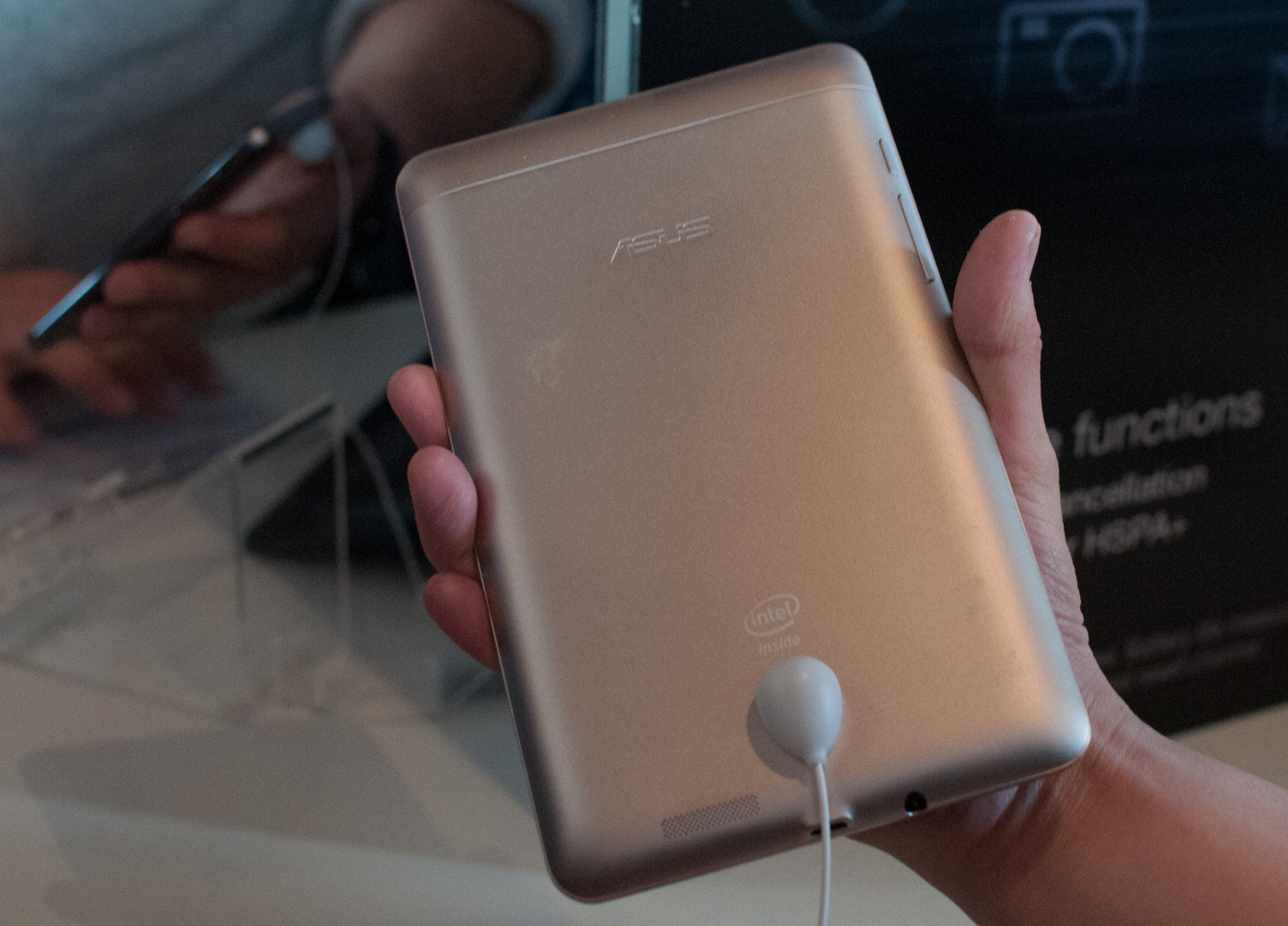
To kick things off, ASUS introduced the Fonepad: a 7-inch Android 4.1.2 tablet that also serves as a phone. Samsung launched the Galaxy Note 8.0 earlier this week with a similar capability. While I don't expect many folks to want to hold a 7-inch tablet up to their face, having the ability to combine both tablet and 
smartphone functionality into one can be tempting. I can see the Fonepad being compelling if you don't make calls all that often but would rather carry a small tablet than a large smartphone, or if you are fine using a Bluetooth headset. 


The device is pretty much a Nexus 7 but with a nice metal back. The dimensions are near identical to the Nexus 7 at 196.4mm x 120.1mm x 10.4mm with a weight of 340 grams. The display resolution remains 1280 x 800 and the IPS panel is LED backlit.

In a curious change of pace, ASUS integrated Intel's Atom Z2420 SoC (single-core + HT, 1.2GHz 32nm, PowerVR SGX 540). I'm curious to see how the single core, low-clocked Atom SoC does compared to Tegra 3 in a tablet. Driving all phone functionality is Intel's XMM 6265 baseband, with support for 850/900/1900/2100MHz WCDMA and 850/900/1800/1900MHz EDGE/GSM bands. There's support for 802.11b/g/n and BT 3.0.


The Fonepad features 1GB of LPDDR2 memory and 16GB of NAND on-board, with a microSD slot for additional storage expansion (a notable absence from the Nexus 7). There's an integrated 16Wh battery (like in the N7) and the device will be available in titanium gray and champagne gold (like the Transformer Prime).
The big selling point of the Fonepad is its price: $249. That's a pretty impressive deal for a full featured smartphone and 7-inch tablet in one. It's a bit of a quirky product, but I can definitely see the Fonepad filling a niche.


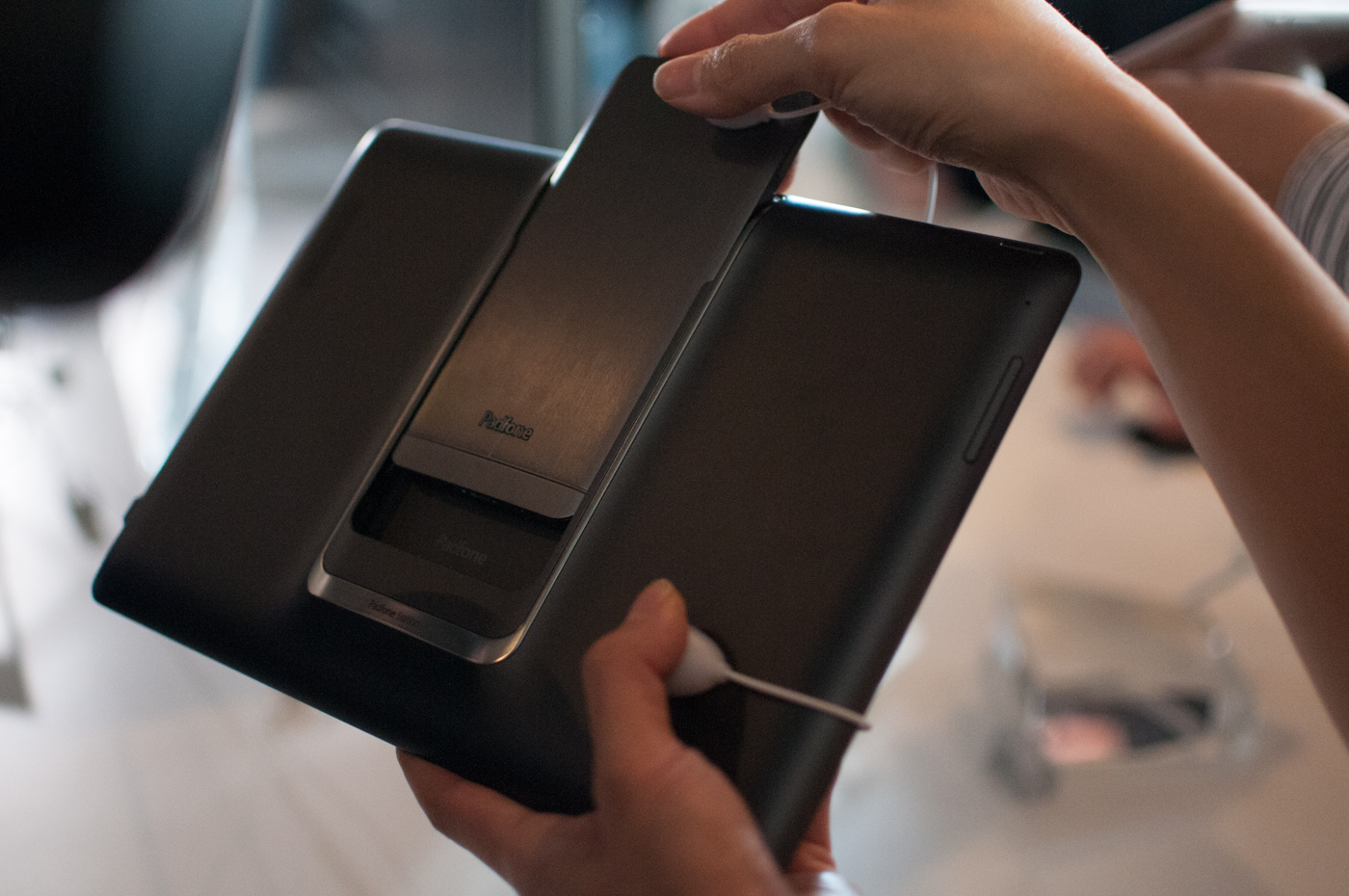
Next up is the ASUS PadFone Infinity. For those of you who aren't familiar with the PadFone concept, it's pretty simple. Take a phone that can dock into and power a tablet display and you have PadFone. The tablet part is strictly a display + battery, all compute and connectivity is driven by the phone element.


The PadFone Infinity takes a 5-inch 1080p Snapdragon 600 based smartphone running Android 4.2 and pairs it with a 10.1-inch 1920 x 1200 tablet dock (the PadFone Infinity Station). The phone weighs 141g and features an integrated 2400mAh battery, while the tablet dock weighs 530g and comes with a 5000mAh battery.

The phone integrates 2GB of LPDDR2-1066, and will come in both 32GB and 64GB versions. ASUS claims support for 802.11b/g/n and 802.11ac with WiFi Direct, BT 4.0 and NFC. Thanks to Qualcomm's baseband, there's full DC-HSPA+ and UE category 3 LTE support. 


The PadFone features a 13MP rear facing camera with f/2.0 aperture lens and a 2MP front facing camera. When in tablet mode, the rear camera remains unimpeded while the front camera is replaced with a 1MP module.

Video out is supported via a Mobility DisplayPort interface (MyDP) that runs over the standard micro-USB port on the PadFone.

Monday, February 25, 2013

Asus Padfone 2 review

Introduction

In today's rapidly-growing market, it's the push for more CPU cores and (mega)pixels that has been driving the industry forward. But every now and then, an extraordinary gadget emerges to explore new and exciting dimensions. Devices like the Samsung Galaxy Note and the Asus Padfone dare to go against the tide and remind everyone that there's more than one right way to make a phone. Or a tablet. Or both.

Asus obviously doesn't have Samsung's momentum, level of sales or, ultimately, an unlimited budget to really go all out on a project like this, but the first Padfone was successful enough to warrant another go-around. A year later, the sequel has a foundation to build upon, and the company has had time to learn and get stuff ironed out.
Asus Padfone 2 Asus Padfone 2 Asus Padfone 2
Asus Padfone 2 official photos
And going by the Padfone 2's specs, Asus are hoping to make a splash.

Key features

  • Quad-band GSM/GPRS/EDGE support; 3G with HSPA; LTE (market dependent)
  • 4.7" 16M-color 720p Super IPS+ capacitive touchscreen display with 312ppi density
  • Android OS v4.1.1 Jelly Bean
  • Quad-core 1.5 GHz Krait CPU, 2 GB RAM, Adreno 320 GPU; Qualcomm Snapdragon S4 Pro chipset
  • Docking station with 10" 1280x800 pixel display, 5000 mAh battery
  • Gorilla Glass protection for both displays
  • 13 MP autofocus camera with LED flash and geo-tagging
  • 1080p video recording @ 30fps, continuous autofocus and stereo sound
  • 1.2 MP front-facing camera on phone, 1MP front-facing camera on docking station, 720p video recording
  • Wi-Fi a/b/g/n, Wi-Fi Direct and DLNA
  • GPS with A-GPS, GLONASS
  • 16/32/64GB of built-in storage
  • MHL-enabled microUSB port
  • Bluetooth v4.0
  • NFC
  • Standard 3.5 mm audio jack
  • Accelerometer and proximity sensor
  • SonicMaster loudspeakers on phone and tablet

Main disadvantage

  • Non user-replaceable battery
  • Mediocre screen quality of the docking station
  • Non-expandable storage
  • No camera key
With the second Padfone you have a properly-powered smartphone just a 1080p screen short of matching the 2013 flagships, and one that converts into an equally powerful tablet. The station screen is not quite up to Retina standards either, but considering the price of the whole package, Asus is still vastly over-delivering.
Sure, the Asus Padfone 2 is priced rather steeply for a smartphone, but it's actually a fraction of what you'd normally pay for a quad-core smartphone and a quad-core tablet. Not to mention the added convenience of having all your files, contacts and accounts at your disposal at all times, regardless of which screen you're using.
Which leads us to the catch. You are not actually getting a smartphone and a tablet here, it's simply two screens to work with and two batteries to power the same combo. The best thing is, the Padfone station (the tablet body) will charge the phone's battery too. Think: a tablet with an escape pod, or a phone that can more than quadruple its screen size when needed.
Asus Padfone 2 Asus Padfone 2 Asus Padfone 2 Asus Padfone 2
The Asus Padfone 2 at ours
It's a smart concept indeed, but we're yet to see how good the Padfone is at both jobs. The first impression it made on us back in October was very positive, so we're looking forward to exploring it in-depth and seeing how well the tandem performs.
The hardware overview is coming up right after the break and there's more stuff than usual to tick off the checklist, so let's get to it!

Design and construction

The Asus Padfone 2 design takes after the company's Zenbooks with the concentric circles at the back, and we have to admit we really like the result. The phone is stylish without being overdesigned, with the unique profile and the pattern at the back bringing personality.
The plastic used reminds us of the Samsung Galaxy S II, which to this day remains one of the most stylish handsets. Asus however added its unique twist with the silver frame around the sides and some cool touches to the front panel.

Asus PadFone 2 Asus PadFone 2
The Zenbook-inspired design looks sweet
The only aspect of the Padfone 2's looks that we are not particularly thrilled about are the large bezels above and below the screen and the unexplainable gaps in the framing on both sides of the phone towards the bottom. It's the point where the two bits meet - but fail to align - which looks like poor craftsmanship, rather than a design accent.
Asus PadFone 2 Asus PadFone 2
The misalignment of the frame pieces on the sides
Still, even with those minor issues, the Padfone 2 is a good-looking phone, and one that provides a fresh alternative to those who may've started to get bored with the looks of recent Android smartphones.

Smartphone controls

We'll start with with the smartphone half of the Padfone 2 package. Above the screen you find the earpiece, flanked by the usual sensors on the left and the front-facing camera on the right.
Asus PadFone 2
The usual set of functional elements above the screen
Below the display you get a trio of capacitive controls: (from left to right) Back, Home and Task switcher. The keys' backlighting can be set to be active for 2 seconds or 10 seconds after use or you can opt for always on.
Asus PadFone 2
There are three capacitive touch buttons at the bottom
On the right side of the smartphone you get the power key and the volume rocker - both of those are large and have good tactile feedback. There's no camera button here, though.
Asus PadFone 2
There are two keys on the right side
The left side of the Padfone 2 is completely bereft of controls or ports.
Asus PadFone 2
There's nothing to see on the left
The 3.5mm jack is in the center at the top of the phone, with the microSIM card slot nearby.
Asus PadFone 2 Asus PadFone 2 Asus PadFone 2
It's busy at the top
At the bottom you get the microphone pinhole and the proprietary 13-pin port. This is actually a customized microUSB port, which enables data and video streaming both for the phone itself and for the docking station. This means you get MHL and USB host functionality if you buy the required adapters.
Even though this is modified microUSB port, you can use regular microUSB cables for both data connections and charging. They don't fit very well though, so you have to be careful not to move things around too much to not get disconnected.
Asus PadFone 2 Asus PadFone 2
Asus uses a proprietary port, but you can plug in regular microUSB cables, too
Finally, at the back you get the 13MP camera lens, the loudspeaker grille and the LED flash. The back panel can't be removed or replaced which means you get no access to the Padfone 2's 2140mAh battery.
Asus PadFone 2 Asus PadFone 2
The 13 megapixel camera lens is the star backstage
It is said to last for up to 16 hours of telephony or 352 hours of stand-by, which sounded pretty promising and the actual performance didn't disappoint. We were surprised to see the Padfone 2 score a rating of 56h, meaning you would only need to charge it once every 56 hours if you do an hour of web browsing, an hour of talking and an hour of video watching per day.

You shouldn't forget either that you can use the Docking station as a charging pack, without turning the tablet on. It takes the station 2 hours and 15 minutes to fully charge a flat Padfone 2 battery and you can do it twice before you have to charge the Docking station itself.

Docking station controls

The Asus Padfone 2 slides into its docking station effortlessly, but thanks to cleverly designed locks it fits firmly in place once it's there. Even if you turn the docking station upside down and shake it vehemently the smartphone won't fall off.
Asus PadFone 2 Asus PadFone 2 Asus PadFone 2 Asus PadFone 2
The nicely designed docking space makes sure the smartphone doesn't fall off
The docking station itself packs a 10" screen, with a video-call camera sitting right below it. There's no need for another camera at the back as you can use the smartphone's 13 MP shooter when it's docked.
Asus PadFone 2
There's a front-facing camera above the screen
On top you get the power button, while the volume rocker is on the left side of the tablet body. Another 13-pin port sits at the bottom, while the back hosts the loudspeaker and the microphone pinhole.
Asus PadFone 2 Asus PadFone 2 Asus PadFone 2
The docking station power button and volume rocker • The 13-pin port
Asus has put a lot of effort into optimizing the audio output of that loudspeaker and it shows. The company has developed the SonicMaster technology together with Bang&Olufsen. It's not quite perfect, but it's certainly better than just about every other tablet loudspeaker we have heard.

Displays

The Asus Padfone 2 comes with a 4.7" Super IPS+ display with a resolution of 1280 x 720 pixels. This comes down to a pixel density of 312ppi - not quite as good as the recent wave of 1080p flagships, but the perceivable difference is minor.
Asus Padfone 2
We love the Asus Padfone 2 screen
The screen of the smartphone boasts good brightness and great contrast, along with decently vibrant colors. The viewing angles are impressively wide and the overall image quality is generally very pleasing. Sunlight legibility turned out surprisingly good, as seen in the chart below.
We have seen slightly better (the HTC Butterfly, which we reviewed the other day springs to mind), but the Padfone 2 screen won't let users down. Besides, Asus claims that thanks to the technology used this is also one of the most responsive smartphone screens around having an average touch response time of 65ms, compared to Galaxy S III's 85ms and HTC One X's 75ms. Of course this is not the kind of difference you can feel in real life, but what's important is the Padfone2 is as responsive as a proper flagship smartphone should be.
Display test 50% brightness 100% brightness
Black, cd/m2 White, cd/m2 Contrast ratio Black, cd/m2 White, cd/m2 Contrast ratio
Asus Padfone 2 0.26 320 1243 0.48 600 1256
Asus Padfone 2 (docking station) 0.25 238 950 0.42 387 911
HTC Butterfly 0.14 173 1200 0.45 501 1104
Sony Xperia Z - - - 0.70 492 705
Oppo Find 5 0.17 176 1123 0.51 565 1107
Sony Xperia S - - - 0.48 495 1038
Samsung I9300 Galaxy S III 0 174 0 330
HTC One X 0.15 200 1375 0.39 550 1410
Nokia Lumia 920 - - - 0.48 513 1065
Nexus 4 0.22 314 1447 0.45 608 1341
LG Optimus G 0.14 197 1445 0.33 417 1438
Apple iPhone 5 0.13 200 1490 0.48 640 1320

The docking station is an entirely different story, though. With fullHD screens available on phones, 1280x800 pixels on a 10"display is bound to result in mediocre image quality.
Asus Padfone 2
The screen on the docking station is hardly exciting
The contrast of the screen is not bad and its colors are okay, but the pixilation is pretty obvious. After all, you when you slide the Padfone 2 in the docking station you gain more than four times the surface and yet you only get 80 extra pixels on one of the sides. The difference in the pixel sizes on the two screens is pretty big, as you can see in the two images below captured with our digital microscope.
Asus Padfone 2 Asus Padfone 2
Padfone 2 phone and tablet screen matrices compares

Jelly Bean is in the driver's seat

The Asus Padfone 2 launched with Android Ice Cream Sandwich out of the box, but the company has since quickly pushed Android 4.1.1 Jelly Bean to the smartphone and tablet combo. Confused about Android versions? Check out our Android version breakdown.
The Padfone 2 now enjoys the benefits of Project Butter, which keeps the framerate of animations at a constant 60 fps and delivers buttery smooth visuals. Combining the power of the four Krait cores and the latest-generation GPU, the Padfone 2 offers a virtually lag-free user experience.
As usual, we've prepared a video tour of the Padfone 2's interface, including of course both phone and tablet demos. Check it out below.
Asus continues to rely on a nearly stock Android look and feel, keeping the launcher and most of the user interface untouched. Nevertheless, the company has provided some customizations here and there that enhance the experience, which we'll point out to you as we go along.
The lockscreen is a standard stock Android 4.1 Jelly Bean affair. There's a large dotted circle around the center-placed unlock button. You still get the two familiar shortcuts - move the unlock button to the left for camera, and right for unlock. There's a new, third icon above them for jumping straight into Google Now.
Asus Padfone 2 Review Asus Padfone 2 Review Asus Padfone 2 Review Asus Padfone 2 Review
The lockscreen provides a shortcut to Google Now and the camera app
The dock at the bottom of the homescreen fits four custom shortcuts or folders. The center one always opens the app drawer, but the other four can be set to any shortcut or even a folder.
As usual, you can pinch to zoom out and manage homescreen panes - add, delete or just reorder them. You can have 7 panes at most, which are enough to fit plenty of content even if you use widgets that cover an entire pane.
Asus Padfone 2 Review Asus Padfone 2 Review Asus Padfone 2 Review
The familiar stock Android lockscreen
In usual Jelly Bean fashion, widgets are resizable and make space for themselves by pushing app shortcuts and folders out of the way to make space for their larger size.
Asus has been kind enough to include some custom widgets of their own including a task manager, number of unread emails, along with Weather and Battery widgets. The latter allows you to switch different power managing modes to get the most out of the battery. From there, you can also choose whether the Padfone 2 is charged when you slide it into the Padfone 2 station.
Asus Padfone 2 Review Asus Padfone 2 Review
The notification center has been slightly revamped and looks a bit different from stock Android.
Quick toggles have been added on separate rows giving you access to the settings menu, Wi-Fi networks and the special Asus Audio Wizard feature.
There are also the actual quick toggle buttons themselves, allowing you to toggle Wi-Fi, Bluetooth, Mobile data (more can be added from the Settings menu). Asus is also giving the option to control the brightness and switch between normal and outside modes of the display.
Notifications can be expanded and collapsed with a two-finger swipe, and the top one is expanded by default (if the app that put up the notification supports it, of course).
Asus Padfone 2 Review Asus Padfone 2 Review Asus Padfone 2 Review
Asus has included quick toggles in the notification center
Folders in Jelly Bean haven't been changed since Ice Cream Sandwich. A folder is created by dropping a shortcut on top of another and can be renamed by tapping on the "Unnamed folder" label. Opening a folder expands it only by as much as is needed to fit the icons inside.
The app drawer on the Padfone 2 consists of four rows of icons and three tabs (instead of the usual two). The new addition is the Pad Only tab, which shows you apps that are run only on the Padfone 2 Station. Unfortunately, the app drawer doesn't allow for custom viewing modes (alphabetical is the only one).
Asus Padfone 2 Review Asus Padfone 2 Review
The stock Android app drawer
Once you get several apps running, you can use the task switcher to go back and forth between them. It's a Jelly Bean-style vertical list with a screenshot and a name for each app. A sideways swipe removes the app from the list.
Asus Padfone 2 Review Asus Padfone 2 Review
Recent apps
Once you slide the Padfone 2 into the Padfone 2 Station you get a full-fledged, 10.1" tablet. It's powered entirely by the smartphone's 1.5GHz Krait monster of a CPU.
Upon unlocking the slate, you're greeted with the familiar Android interface. The homescreen configuration is quite reminiscent of Ice Cream Sandwich and features a top navigation bar which holds the usual three-button Android combo.
However, Asus has added a fourth one - Floating widgets. Floating widgets are small, independent windows that are overlaid over anything else - the homescreen, regular full-screen apps, anything. You can fit two or three of those on the large 10.1" screen and they really improve the multitasking capabilities of the tablet.
Asus Padfone 2 Review Asus Padfone 2 Review
Floating widgets provide true multitasking
Available Floating widgets include a calculator, calendar, email, dictionary, Asus' BuddyBuzz and the AudioWizard. If you don't intend to use any of those apps, you can always hide them.
Anyway, the notification center in tablet mode is the same as the smartphone's and includes the handy quick settings toggles. The number of homescreens maxes out at seven, but that's enough space for all the widgets and app shortcuts you would need.


Final words

The Asus Padfone 2 is a fine example of the kind of out-of-the-box thinking we like to see from more manufacturers. The hybrid is a unique concept which makes so much sense that we wonder why more OEMs haven't explored it.
Not only do you get access to your files and apps at all times without having to use any kind of sync service or install them twice, but you will also enjoy the power of the Snapdragon S4 Pro chipset and its 4 Krait cores and network connectivity on both devices without paying extra for it. Of course, you obviously cannot use both devices simultaneously, but unless you plan on sharing, that's a non-issue.
The actual execution of the idea has also been notably improved with the second generation Padfone. The hybrid is now properly powered, it's lighter and looks more stylish than its predecessor, and allows you to switch between the two displays much faster. We also like the Zenbook-inspired design much better. The upgraded camera also makes a difference and the new spring system makes sure everything remains locked firmly in place.
However, if you look at the two pieces of the combo separately there is certainly a lot of room for improvement. First and most important, a tablet with so much power definitely deserves a better screen. The modest resolution can't fully take advantage of the monstrous chipset and give you the high-res gaming experience that S4 Pro devices are known to deliver.
The other thing is the non-expandable storage, which means you'll need to at least get the 32GB version (it's the most widely available, too). You could probably live with 16GB on a 720p smartphone, but the fact that you carry the tablet apps with you at all times makes it insufficient for the hybrid device.
The Asus Padfone 2 itself a brilliant smartphone, but the recent onslaught of 1080p flagship sees it slide down the food chain. Costing as much as the newly unveiled HTC One, the Asus flagship simply cannot match the 1080p monster in any of the key aspects (even though it probably holds an advantage in camera quality).
So is this a disappointing end to a story with such a promising beginning? Not really - the Padfone 2 is just a case where the whole is better than the sum of its parts. You have to be one of those who need both a tablet and a smartphone to be interested in the Padfone, but if you go for it you'll be getting value for money. Hard to believe? Let's have a look at a couple of alternative tablet and smartphone combos that you can get right now.
An Asus MeMo Pad Smart is about €340 for the 16GB Wi-Fi only option and while its Tegra 3 chipset won't match the S4 Pro in performance it should offer a tablet experience similar to that of the Padfone 2 docking station. After that you'll have to go for the cheapest quad-core smartphone out there - currently, the LG Optimus 4X HD - to fit within the Padfone 2 budget.
Depending on how important it is for you to be able to use the two devices simultaneously, you might find the deal worth it, but you should know that both the tablet and the smartphone experience are a step backwards from the Asus offering. You'd be losing network connectivity on the slate and the better camera, more capable chipset, and Jelly Bean on the smartphone. Plus after the waste of space needed for two separate Android installations and all the apps twice you will actually have far less storage available for your media (which you'll need to sync back and forth all the time, too).
Asus Memo Pad ME172V
LG Optimus 4X HD P880 • Asus Memo Pad ME172V
You can get the cheaper Nexus 7 to compliment a more capable smartphone, but a 7" tablet and near-5" smartphone make little sense to us.
Asus Google Nexus 7
Asus Google Nexus 7
Alternately, if you happen to live in a country where the Google phone I available at the Play Store, you can opt for a Nexus 4 and Nexus 10, which will be the ultimate combo - and one with great pedigree too. They both have powerful chipsets so you won't be missing much in terms of performance, and the tablet screen is vastly superior to that of the Padfone 2 docking station. You will need to spend nearly €700 to get 32GB of storage on those two combined, though, and again you will actually have far less of that left for your personal files.
If you don't have a devices section of the Play Store in the country where you live, this deal is hardly in the same league as it will run you over €1000.
LG Nexus 4 E960 Samsung Google Nexus 10 P8110
LG Nexus 4 E960 • Samsung Google Nexus 10 P8110
So at the end of the day the Asus Padfone 2 will only cater for the needs of a specific group of people, but it will do so quite well. And as tablets continue to gain popularity, a combo like this will only be getting a bigger field to play in.
Asus needs to play its part too. The company has already shown that it can release timely updates, so we are hoping Android 4.2 won't take long to hit the Padfone 2. We'd also like to see them convince more developers to update their apps to support the seamless Dynamic display transition from phone to tablet and vice versa.

You might also like:

Related Posts Plugin for WordPress, Blogger...

Infolinks In Text Ads